Pages

Saturday, July 7, 2012

How to open facebook at restricted zone like school or office?


In schools and office, facebook and other social networking sites is
blocked. I am now with a trick to open facebook at restricted area.


Try to open through https
This is the first trick. Usually computer administrator blocks the facebook by
http://www.facebook.com.
But there is also another protocol HTTPS. It the secure version of
http. If the computer administrator block http you can access facebook
by
https://www.facebook.com.


Try to login via proxy
This is the second trick. Proxy sites provide access to remote sites using a computer that act as a link. One that works efficiently is Vtunnel.com.
To use Vtunnel, enter www.facebook.com Vtunnel.com.
Note: To use this trick you must allow cookies in your web browser.


Enter through Google translator
The
third trick is to login through Google Translator. Google translator is
the website used to translate languages of websites. Enter the link of
facebook in Google translator and you can access facebook easily.


Google Translator: http://translate.google.com


I tried these tricks at my office and work perfect for me.
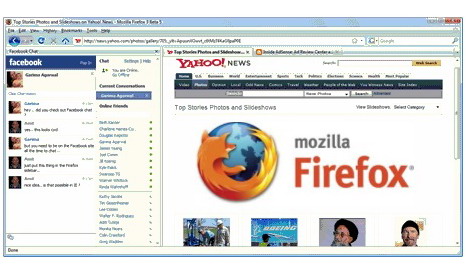
Trick to Facebook chat in Firefox Sidebar


In this trick you can chat with your facebook friends, while browsing to other sites.
Steps

  • First you go to http://www.facebook.com/presence/popout.php
  • Check the Load This Bookmark In Sidebar box
  • Then click View->Sidebar->Bookmarks in Firefox to open the sidebar bookmarks
  • Select the bookmarked page and you are done
  • You can now browse any sites while chatting with your friends!
How to send SMS free to anyone in India from Gmail?
Gmail has many many new feautures that we dont know, one of them is sending sms (in India). Let us watch how to send free sms to india using gmail.

  • Sign in to your gmail account
  • Then click the icon of the gear and choose settings
  • Then select the Lab option
  • In the lab option,find the search box
  • Then Search sms in the search box
  • Then 2 lab feautures will appear (SMS (text messaging) in Chat,SMS in chat Gadget)
  • Enable the two options
  • Now sign out and log in to your account
  • Then you can see Chat and Sms option in the chat menu
Note:You can send only 48 SMS a day.Only some of Network Providers are available....

Check the list of all supported network providers

  • Afghanistan
    Afghan Wireless Communication Company
    Etisalat
    Roshan
  • Algeria
    Nedjma
  • Angola
    Movicel telecomunicações, SA.
    Unitel
  • Bahrain
    Viva
    Zain
  • Bangladesh
    Citycell
  • Benin
    ETISALAT Bénin
  • Cambodia
    Smart
  • Cameroon
    MTN
    Orange
  • Congo, Democratic Republic
    Vodacom
  • Côte d'Ivoire
    MTN
    Moov Cote d’Ivoire
    Orange
  • Egypt
    Mobinil
  • Ghana
    Airtel
    MTN
    Tigo
  • Guam
    iConnect Buddy
  • Guinea
    Orange
  • India
    Aircel
    Loop Mobile
    MTS
    Reliance
    Tata DoCoMo
    Tata indicom
  • Indonesia
    Axis
    Indosat
    Telkomsel
    Tri
    XL
  • Iraq
    Zain
  • Israel
    orange
    Pelephone
  • Jordan
    Umniah
    Zain
  • Kazakhstan
    Kcell
  • Kenya
    Airtel
    orange
    Safaricom
    Yu
  • Kuwait
    Viva
    Wataniya
    Zain
  • Kyrgystan
    Megacom
  • Liberia
    Cellcom
  • Malawi
    Airtel
    TNM
  • Malaysia
    DiGi
    Maxis
  • Maldives
    Dhiraagu
    Wataniya
  • Morocco
    inwi
  • Mozambique
    Vodacom
  • Niger
    Orange
  • Nigeria
    Airtel
    Glo
    MTN
    Starcomms
    Visafone
  • Pakistan
    Mobilink Ufone
  • Palestinian Territories
    Jawwal
    Wataniya Mobile
  • Philippines
    Globe
    SMART
    Sun Cellular
  • Saudi Arabia
    Mobily
    STC
    Zain
  • Senegal
    orange
    Tigo
  • Sierra Leone
    Comium
  • South Africa
    8ta
    MTN
  • Sri Lanka
    Dialog
    Etisalat
    Mobitel
  • Tanzania
    Vodacom
    Tigo
  • Thailand
    dtac
    True Move
  • Tunisia
    Orange
    Tunisiana
  • Uganda
    Orange
    MTN
    Uganda Telecom
  • Ukraine
    Intertelecom
  • United States
    All operators
  • Uzbekistan
    Ucell
  • Vietnam
    VinaPhone
  • Zambia
    Airtel
    MTN
    Zamtel
Enjoy...

How to change FAT or FAT32 into NTFS?


NTFS (New Technology File System) has more feautures than old FAT or FAT32 file system. But if you convert FAT or FAT32 into NFS you cannot roll back into FAT or FAt32 again.


  • First go to Start button then click on Run option.


  • Now type here “CMD” and press Ok to open command prompt.


  • At the command prompt type convert drive letter name: /fs:ntfs


  • For example if you want to convert drive E to NTFS then the command will be “convert e: /fs:ntfs”.


  • Now restart your computer and enjoy NTFS features, but keep in mind you cannot covert back it to FAT or FAT32 again.
Create Your Own Customized Run Commands


This trick explain you to create your own customised Run commands.

1. Right click on your Desktop and choose New -> Shortcut.
2. You can see a “Create Shortcut” Dialog box
3. Click on “Browse”,then goto: Program Files -> Internet Explorer from your Root drive (commonly C:\) and select “iexplore” and click on “OK”.
4. Click “Next” and type any word for your shortcut. You can choose any name as you wish; this will be your customized “Run command”. In this case I name my shortcut as “iex”. Click on “Finish”.
5. You can see a shortcut named “iex” on your desktop.Copy this shortcut and paste it in your Windows folder (Commonly “C:/Windows”). Once you have copied the shortcut onto your Windows folder, you can delete the one on your Desktop.
6. Now on, just open the Run dialog box, type iex and press Enter to open the Internet Explorer.
How to load Applications Faster?


Do you know how to start up applications much faster just like Microsoft's Windows Media Player.

1) Select an application that you want to start up quicker.

2) Create a shortcut and place it on the desktop.

3) Right click the shortcut item and click properties.

4) In the target field you will have it pointing to the location of the application. For Example it will say "C:\Program Files\Washer\washer.exe"

5) Add /prefetch:1 right after the last " marks in the target field. So you will have something that looks like this..

"C:\Program Files\Washer\washer.exe" /prefetch:1

6) The application will start up quicker.

Use Boot Defragment for fast booting...


Microsoft Windows XP has the ability to do a boot defragment.By default this option is enabled but some upgrade users have reported that it isn't on their setup.

1. Start Regedit.
2. Navigate to HKEY_LOCAL_MACHINE\SOFTWARE\Microsoft\Dfrg\BootOptimizeFunction
3. Select Enable from the list on the right.
4. Right on it and select Modify.
5. Change the value to Y to enable and N to disable.
6. Reboot your computer.